


Setting up a new IoT device can quickly turn frustrating when connectivity issues arise or pairing steps fail without clear explanation. This guide compiles 20 practical troubleshooting tips drawn from insights shared by experts in the field who regularly solve these common problems. Whether dealing with Wi-Fi connectivity, firmware updates, or configuration errors, these strategies offer clear solutions to get devices working reliably.
- Move Closer To The Wi-Fi
- Ask An AI With Product Context
- Force A Separate 2.4 GHz Band
- Test With A Clean Hotspot
- Map The Path And Protocols
- Post Credentials With A QR Code
- Photograph Wiring Before Thermostat Install
- Factory Reset Then Follow The Checklist
- Shift Focus To Connectivity Context
- Trust The LEDs And Event Logs
- Disable MAC Randomization On iPad
- Restart At The Last Confirmed Step
- Try A Simple Guest Access
- Start With The Knowledge Base
- Keep It Simple With Schedules
- Turn Off VPN And Enable Location
- Unhide The SSID During Setup
- Check Phone Permissions Upfront
- Force Pair Over Local Radio
- Update Firmware And Replace Default Passwords
Move Closer To The Wi-Fi
As someone working at the intersection of connectivity and user experience, I’ve seen a consistent pattern: most IoT setup issues aren’t technical failures; they’re small environment mismatches.
One tip that makes a real difference:
Before setup, temporarily move your IoT device closer to your router.
This minimizes interference, avoids weak-signal dropouts, and ensures the initial handshake between device and network is stable. Many connection failures happen simply because the device is trying to authenticate on a weak or fluctuating signal.
A method that’s helped me repeatedly:
I rely on a “reset and isolate” approach: reset the device, connect only that device during setup (avoid multiple simultaneous pairings), and follow the app instructions step by step without skipping ahead. It sounds basic, but it removes hidden conflicts that often cause silent failures.
This is especially useful in dense environments like condos or apartments, where overlapping networks can interfere with onboarding.

Ask An AI With Product Context
One thing we’ve found to be super useful is using a tool like ChatGPT / Gemini / Grok Voice but also adding context from several sources so you steer the model correctly and can give it live feedback as you are working through connecting your new IoT device.
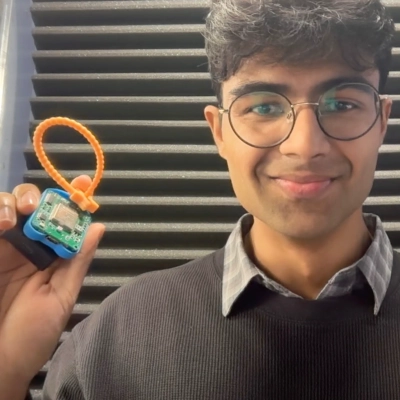
At ElatoAI, we make an IoT device that people can talk to anywhere in the house. It’s a portable voice companion to personify your environment. We heard from our users that if they weren’t able to figure something out they went on our website and FAQ section, and Product specs page, copy pasted their query with all the context.
This way the AI can provide highly accurate debugging and troubleshooting steps without putting critical components of the device at risk. It makes sure the IoT device doesn’t suddenly turn hazardous by minor missteps because the AI tool has maximum context on the product.
Force A Separate 2.4 GHz Band
The single tip that resolves most IoT connection failures: check whether your router is broadcasting a 2.4GHz network separately from the 5GHz band. Most modern routers combine both frequencies under one network name, but the majority of IoT devices — smart plugs, cameras, thermostats — only connect to 2.4GHz. When the router auto-assigns your phone to 5GHz during setup, the IoT device can’t complete the handshake because they’re on different frequencies even though the network name looks identical. The fix: temporarily disable the 5GHz band in your router settings, complete the IoT setup on the 2.4GHz-only network, then re-enable 5GHz. Alternatively, some routers let you create separate SSIDs for each band — name one “Home” and the other “Home-IoT” so you always know which frequency you’re connecting to. This solves about 80% of “device won’t connect” frustrations.

Test With A Clean Hotspot
The single biggest unlock we’ve found, after wiring up countless devices on our infrastructure side, is to stop blaming the device and start isolating variables. When an IoT gadget refuses to connect, our first move is to take the home Wi-Fi router out of the equation entirely. We bring up a phone hotspot on a 2.4 GHz only SSID with a short, alphanumeric password and no special characters. Then we put the device through its setup flow against that hotspot. Roughly eight times out of ten, it pairs immediately, which tells us the device is fine and the router is the problem.
From there, the fix is usually one of three things on the home router itself. Either band steering is collapsing 2.4 and 5 GHz into one SSID and the device cannot find the slower band, or the router has client isolation or AP isolation turned on, or the password contains a character the device’s tiny firmware does not parse correctly. We rename the 2.4 GHz network so it has its own SSID, disable client isolation, and switch to a clean password. The resource we keep coming back to is our own router’s admin page, not the device manufacturer’s support docs. Manufacturer guides assume a perfect network. Our experience is that the network is almost never the perfect part.

Map The Path And Protocols
My background is in systems integration—connecting platforms, automating workflows, and making sure data moves cleanly between tools. IoT devices are just another node in that ecosystem, and the connection logic is usually the same problem I’ve solved dozens of times across CRM, e-commerce, and warehouse systems.
The single best tip I can give: **map your data path before you touch any settings.** Most people jump straight into the app and start tapping buttons. Instead, write down every device, hub, and network involved—then confirm each one is actually “speaking the same protocol.” A mismatch there kills more setups than any hardware defect ever will.
When I built out warehouse and fulfillment systems from scratch, the biggest early failures came from assuming two systems could “just talk.” They rarely do without you explicitly defining the handshake. Same thing applies here—check whether your IoT device requires a specific firmware version or app permission before the pairing sequence even starts. That single pre-check eliminates most failed attempts.
The resource that consistently helps my team: the device manufacturer’s **release notes**, not the quick-start guide. Quick-start guides are written for the ideal scenario. Release notes tell you what actually broke and what workaround people are using right now.

Post Credentials With A QR Code
One of my top tips is to make sure you create an easily readable (QR) code with all of your Wi-Fi information and a link to easy-to-follow directions on how to set up the Wi-Fi connection. We place QR codes for the Wi-Fi at Stingray Villa and a digital version of our guidebook in every guest room. Guests are able to quickly find this information using their mobile devices. This has eliminated the time spent by staff helping guests access the correct passwords and saves us approximately 2-5 hours each week.

Photograph Wiring Before Thermostat Install
As owner of Roman Air Cooling & Heating, I’ve led installations of smart thermostats—all makes and models—for Central Florida homes, integrating them seamlessly with HVAC systems.
One tip: Snap photos of your existing wiring, ductwork, and air handler before connecting your new IoT thermostat, capturing labels and connections clearly.
This method saved us during a St. Cloud install when a customer’s old thermostat wiring didn’t match the smart model’s requirements—we cross-checked photos against the HVAC specs and adjusted on-site, testing full performance before leaving.
It ensures compatibility without trial-and-error, mirroring our post-install checks for airflow and controls.

Factory Reset Then Follow The Checklist
I’m Runbo Li, Co-founder & CEO at Magic Hour.
Reset the device and start from scratch. Seriously. That one step solves about 80% of IoT setup headaches, and most people skip it because they think they’re “almost there.” They’re not. They’re debugging a half-configured state that’s harder to fix than a clean install.
I hit this wall setting up a smart home camera system at my parents’ house. They run a small business, and we wanted security cameras they could monitor from their phones. I spent two hours trying to get the third camera to connect to their Wi-Fi. I swapped ports, restarted the router, moved the camera closer to the access point. Nothing. Then I factory reset the camera, started the pairing process from step one, and it connected in under 90 seconds.
The problem wasn’t the hardware or the network. It was that the device had cached a failed handshake from an earlier attempt, and every retry was building on a broken foundation. That’s the pattern with almost every IoT frustration I’ve seen. People try to fix a bad setup instead of wiping it clean and doing it right once.
The method that changed everything for me was treating the manufacturer’s quick-start guide like a literal checklist. Not skimming it, not assuming I knew the flow. Step one, then step two, in order. IoT devices are built to be set up by non-technical people, which means the guided flow is usually rock solid if you follow it exactly. The moment you skip ahead or improvise, you introduce variables the software wasn’t designed to handle.
And if the quick-start guide fails you, go straight to YouTube. Search the exact model number plus “setup.” There’s almost always a three-minute walkthrough from someone who hit the same wall you did. I’ve found random YouTube videos more useful than any official support line.
The biggest unlock with any tech problem is the same: stop trying to fix what’s broken and start clean. A fresh reset costs you five minutes. Debugging a mystery costs you an afternoon.

Shift Focus To Connectivity Context
The most useful shift is to stop treating IoT setup as a device issue and start treating it as a network and environment issue. In most cases I’ve seen, the failure point isn’t the device itself, it’s how it interacts with Wi-Fi settings, permissions, or the initial handshake with the app. One simple step that resolves a surprising number of problems is isolating variables early. Connect the device on a clean 2.4GHz network, move it close to the router, and temporarily disable anything that could interfere like VPNs or mesh switching. That alone often turns a “broken” setup into a working one.
What helped me personally was adopting a more systematic troubleshooting approach rather than retrying the same steps. I map the setup process as a short sequence and validate each stage, power, network visibility, app pairing, and firmware. If something fails, I know exactly where it’s breaking. Pairing that with community-driven resources has been key. Niche forums, Reddit threads, and even recent app reviews often surface real-world fixes faster than official documentation because they reflect current issues with specific firmware versions or router configurations.
From a broader perspective, this mirrors how we approach systems in business. When something doesn’t work, it’s rarely one component in isolation, it’s the interaction between components. IoT devices are no different. Once you focus on the environment and the sequence, rather than just the device, setup becomes far more predictable and far less frustrating.

Trust The LEDs And Event Logs
A practical tip is to watch the lights, not just the app. Indicator patterns usually reveal more than the setup screen because they show whether the device is in pairing mode, searching for a network, or rejecting credentials. Take a short video of the light sequence during setup and compare it with the manual. That creates an objective record and makes it easier to spot a missed step, especially when the app gives a vague error message.
I resolved a similar issue by checking the router event log right after each failed attempt. That showed repeated authentication failures, which pointed to a hidden character mismatch in the password. Small clues in network logs often solve what looks like a hardware problem.

Disable MAC Randomization On iPad
My experience managing nationwide Video Remote Interpreting (VRI) and captioning services involves connecting hardware in high-security environments like hospitals and courtrooms. Ensuring that a device maintains a secure, constant connection is the foundation of the accessibility support my agency provides.
When connecting a new iPad for remote communication, turn off the “Private Wi-Fi Address” or “MAC Randomization” setting in your network options. We have found that this feature frequently triggers security blocks on professional networks, preventing the stable, high-bandwidth stream required for live ASL interpreting.
I use a “network isolation” test, where I connect the device to a mobile hotspot to instantly confirm if the setup issue is the hardware itself or a local firewall restriction. This method helped us stabilize remote services for DeafBlind and Hard of Hearing clients in complex government settings where standard troubleshooting often fails.

Restart At The Last Confirmed Step
One tip: treat setup like a funnel, not a mystery. Write down the “activation path” in five steps (power – app install – account – permission – pairing) and restart at the last confirmed step when it fails, instead of redoing everything.
What usually unblocks it is permissions. In AR marketing at a $300M startup, most “it won’t connect” issues weren’t the device–they were Bluetooth/Location/Local Network permissions or the app not being allowed to find devices, especially after an OS update.
The resource/method that helped me: I keep one clean “control” phone profile (fresh OS, minimal apps) and test pairing there. If it works, your device is fine and the issue is your main phone’s settings; if it doesn’t, it’s the device/app flow.
Marketing brain hack: rename the device in the app to something unmistakable (Room + function). It prevents you from pairing to the wrong unit later and reduces “phantom” troubleshooting when you’re actually looking at the wrong device instance.

Try A Simple Guest Access
A smart starting point is to verify the network settings before opening the app. Many new IoT devices still rely on 2.4GHz, WPA2, and simple SSIDs, so modern router setups can create hidden incompatibilities. If the device refuses to connect, create a temporary guest network with a basic name and password, then try again. That small adjustment often reveals whether the issue is the device or the home network.
What helped me was keeping a short setup checklist beside the screen. I used it to track each step once, which stopped repeated guesswork and made the failure point much easier to spot.

Start With The Knowledge Base
If you are struggling to set up or connect a new IoT device, my single best tip is to consult a centralized knowledge base first and then use an automated helpdesk channel if you still need help. At Kualitatem we adopted Zendesk as our helpdesk platform and that change transformed how technical issues were handled. Automation routed technical concerns directly to our IT staff so the right people saw and addressed problems quickly. Equally important was the centralized knowledge base that let users find step-by-step guidance without waiting for a ticket. For an IoT device, search the knowledge base for setup articles, troubleshooting steps, firmware notes, and common error explanations. If those resources do not solve the issue, submit a support ticket with error messages and screenshots so the system routes it to the correct team. That combination of clear self-service content plus targeted support routing is what helped me overcome similar connectivity challenges. It reduces frustration, shortens resolution time, and gets you working with the right specialist when live assistance is necessary.

Keep It Simple With Schedules
If you are struggling to set up a new IoT device, start by keeping the initial configuration simple and use schedule-based settings rather than complex automations. I learned this while integrating a smart thermostat and lighting system that I set to adjust based on my schedule and mood. Focusing on one device and a clear schedule made it easier to confirm the connection and fine tune behavior. Use the device’s built-in scheduling or automation tools first, then add integrations once the basic connection is stable.

Turn Off VPN And Enable Location
Running a repair shop means I see IoT setup failures constantly—usually it’s not the device, it’s the phone being used to set it up.
The single most overlooked fix: **temporarily disable your VPN before running the IoT setup app.** VPNs reroute traffic in ways that confuse the device pairing process, and the app just silently fails. I’ve watched customers spend an hour troubleshooting a smart plug that connected instantly the moment they turned off their VPN.
A close second—make sure your phone’s location permissions are enabled for the setup app. Sounds unrelated, but many IoT apps use location data to detect local network broadcast signals during initial pairing. Denied permissions quietly breaks that handshake.
If you’ve done both and it’s still failing, the issue is often the device itself needing a firmware reset before first use—something I deal with regularly on customer drop-offs. Hold that reset button longer than you think is necessary, then start the setup fresh.

Unhide The SSID During Setup
IoT devices often fail when attempting to connect to a hidden Wi-Fi network (one that does not broadcast its SSID). Smart devices often lack the ability to find the SSID of a network configured to be hidden during an automated scan, which is why many smart devices are unable to connect. The most successful solution to this connectivity issue is to temporarily set the wireless router to broadcast the SSID until the device has been successfully onboarded. The signal strength and signal visibility of the access point can be validated by using a local network mapping tool or a simple Wi-Fi analyzer application. Once the device is connected, the user can return the router to its previous settings (SSID hidden). This way, when the device searches for the AP, it will have the correct access credentials saved and it will be able to make a permanent, secure, and reliable connection.

Check Phone Permissions Upfront
A strong first step is to check whether the issue is really with the device or with your phone settings. New IoT devices often depend on nearby permissions, local network access, background refresh, and Bluetooth being active at the same time. If even one is blocked, the setup can stall without giving a useful error. Reviewing those permissions usually solves what looks like a hardware problem.
What helped me was building a simple checklist from the manual, then comparing it with a recent community thread. That combination turned vague trial and error into a clean process with far fewer missed details.

Force Pair Over Local Radio
Cellular network interference is one of the most common reasons IoT devices fail to set up correctly. Another troubleshooting tip used by leading carriers is turning off your phone’s cellular data and enabling Wi-Fi only when pairing the phone with the new product. Many handsets have an Airplane mode feature you can use to disable cellular signals while keeping Wi-Fi active. A lot of network vendors tout this as the primary fix to “handshake timed out” issues you might see during IoT device installation. This forces a phone to communicate through the Wi-Fi router so the setup process sends the right info directly to the new product instead of trying to deliver it through a carrier’s cellular data network.

Update Firmware And Replace Default Passwords
With over 20 years in IT support and cybersecurity for healthcare and DOD contractors, I’ve hardened thousands of endpoints including IoT devices to pass CMMC and HIPAA audits without breaches.
My top tip: Update firmware and change default passwords immediately via the device’s admin portal before connecting to your network–this blocks synthetic identity exploits we see in AI-driven attacks.
For a finance client struggling with secure VOIP sensors, our device hardening checklist from SentinelOne integration fixed persistent connection failures by enforcing Zero Trust controls upfront, ensuring compliant WFH access.